

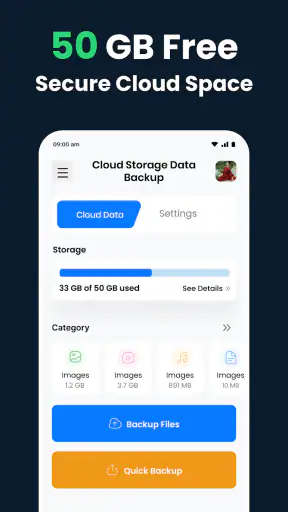
I came away from Cloud Storage: Data Backup with a fairly clear impression: it is a straightforward productivity app for people who want a separate place to keep important files, photos, and videos rather than relying only on their phone. I would recommend it to someone who values simple access and an extra layer of organization, but I would not treat it as a complete replacement for a carefully planned backup system.
The app is free to install and is made by APPS GLOBAL Zone - FZCO. Its main purpose is easy to understand: use cloud space to store personal content and reach it when needed. That focus makes it less intimidating than a broad file-management suite, especially for someone who wants to move beyond keeping everything in the phone’s internal storage.
It sits in the productivity category, although its practical role is closer to a personal digital cupboard. You can think of it as a place for documents, pictures, and videos that you do not want tied to one device. In my experience, that is the most useful way to judge it: not as a tool that transforms how I work, but as a convenient safety net for everyday digital clutter.
How the app feels in everyday use
The strongest part of the experience is the clear purpose. Instead of presenting itself as a complicated workspace with many unrelated tools, Cloud Storage: Data Backup centers attention on storing personal content. That makes the first decision easier: identify what should leave the phone, then place it in cloud storage where it can be reached later.
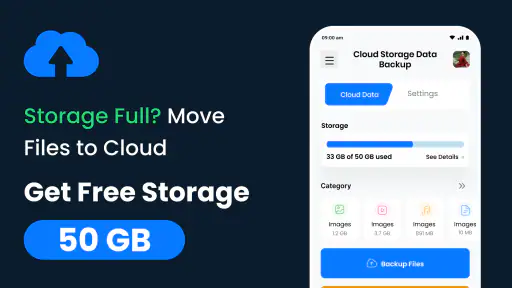
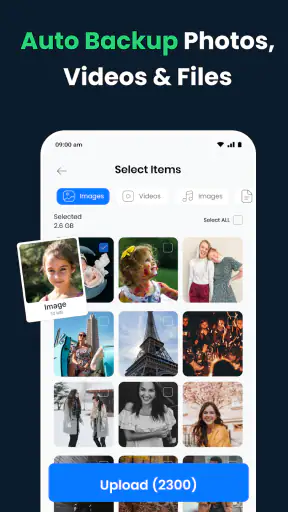
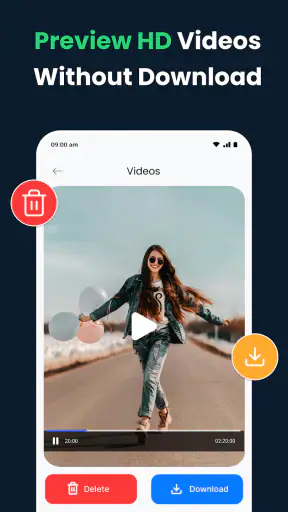
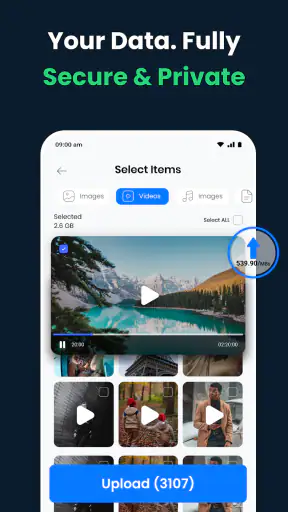
A realistic example would be a family trip. I might return with a crowded camera roll, several short videos, and a few travel documents saved in different folders. Rather than leaving everything mixed together on the handset, I could use the app to collect the material in one remote location. The benefit is not only freeing local space; it is also having a more deliberate place to look when I need a particular file months later.
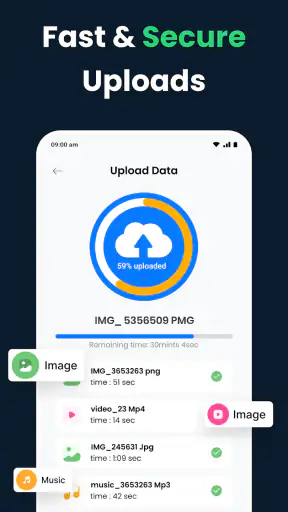
Another useful routine is preparing before changing phones. I would first sort the items I genuinely care about, then upload them instead of treating the phone itself as the only copy. This is a small but important habit. Cloud storage becomes much more useful when I use it as part of a repeatable routine, rather than opening it only after a device problem has already happened.
The app is rated for everyone, which matches its approachable purpose. I can see it working for students keeping coursework, parents organizing family media, and casual users who want their important files available outside their handset. It also suits people who are not interested in learning a full desktop synchronization system.
Its popularity suggests that the basic idea has reached a substantial audience: the app has passed one million installs, with an average rating of 4.4 from roughly five and a half thousand ratings. Those figures do not prove that it will suit every workflow, but they do indicate that the simple cloud-storage concept is resonating with many Android users.
Where it is most useful
I found the app easiest to appreciate when the goal was separation. Keeping everything on a phone is convenient until the device becomes full, is replaced, or is unavailable. Moving selected content to the cloud gives me another access point and encourages me to decide which files deserve long-term attention.
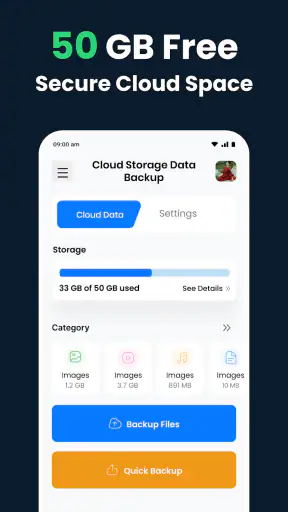
That selective approach is also my first practical tip. I would not upload every temporary screenshot, duplicate image, or forgotten download. Cloud space can become just as messy as local storage if I treat it as a dumping ground. A better workflow is to create a small set of meaningful groups, upload the files that belong there, and periodically remove material that no longer matters.
A second tip is to use it for finished work rather than active editing whenever possible. If I am repeatedly changing a document, I need to pay attention to which version I am storing. Cloud Storage: Data Backup is more valuable as a dependable holding place for completed or important files than as the center of a complex collaborative editing process. That distinction prevents disappointment and keeps the workflow simple.
A third useful habit is to separate irreplaceable items from convenient copies. Family photos, identification scans, and important personal documents deserve more care than files that can easily be downloaded again. I would keep the most valuable material organized and, where the consequences of loss are serious, maintain another independent copy as well. A single cloud location should not automatically be mistaken for a full disaster-recovery plan.
Strengths beyond the basic description
The app’s real strength is accessibility. A person who finds conventional file-management tools confusing can understand the central action quickly: place content in cloud storage so it is not confined to the phone. That clarity matters because backup habits often fail when the setup feels like work.
I also like the way the concept encourages a change in behavior. Instead of asking, “Where did I save that?” every time I switch devices, I can build a habit of putting important items in one known location. The value grows gradually. The first upload may feel ordinary, but the convenience becomes obvious when a file is needed away from the original phone.
There is a useful trade-off here. A focused app can feel calmer than a large productivity platform, but it may not satisfy someone who wants every storage, sharing, editing, and synchronization feature under one roof. For a simple personal archive, that narrow focus is an advantage. For a team workspace, it may feel limited.
The current version is 1.2.00, and it supports Android 7.0 or newer. That gives it a reasonably broad reach among Android users, including people who are holding on to older devices. I would still check the app’s behavior on the specific phone before moving a large personal collection, particularly if the handset has limited free space or an inconsistent connection.
The limitation I would take seriously
The biggest weakness is not the idea of cloud storage itself; it is the responsibility that comes with trusting a remote service. Before uploading sensitive documents or private media, I would want to understand the app’s account, access, deletion, and privacy behavior in detail. The convenience of having files available elsewhere should not encourage careless storage of information that could cause harm if mishandled.
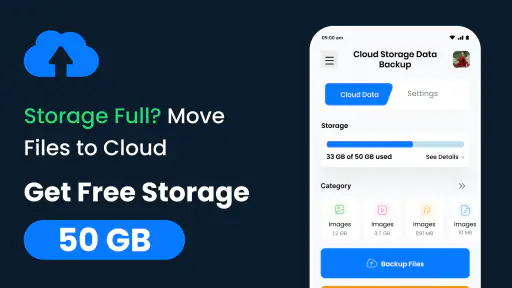
There is also a cost consideration. The app is free, but it includes in-app purchases ranging from $1.49 to $169.99 per item. That means the no-cost starting point should not be confused with unlimited storage at no charge. I would begin with a small, well-organized collection and review the available space and purchase terms before committing the rest of my digital archive.
This is where the app requires more judgment than its simple premise might suggest. If I only need to protect a modest group of documents and a manageable number of photos, a free starting option may be enough. If I intend to preserve years of high-resolution videos, costs and organization become much more important. Large media libraries can grow quickly, so I would estimate my needs before moving everything.
Another point is that cloud access depends on connectivity and account access. I would not use the service as the only way to reach something I need during travel, at work, or in an emergency. For frequently used documents, keeping a local copy can be sensible. The best arrangement is often a combination: cloud storage for availability and an offline copy for moments when the network is unreliable.
That trade-off separates this app from a traditional folder on a computer or an external drive. A physical drive gives direct ownership of the device holding the files, while a cloud app is easier to reach from different places but depends on the service and the user’s account. Neither approach is perfect. Cloud Storage: Data Backup makes more sense when convenience and remote access matter more than having a completely offline archive.
Who should use it, and who should look elsewhere
I would recommend it to Android users who want a clear place for personal files, photos, and videos and who are willing to organize their collection gradually. It is particularly suitable for someone moving between devices, trying to reduce phone clutter, or creating a second home for important everyday content.
It may also help a less technical family member who needs a simple explanation of cloud storage. I would introduce it with a narrow first task, such as saving a selected folder of family pictures or essential documents. Starting small makes it easier to understand the workflow and avoids filling the account with duplicates before the user has developed a system.
I would be more cautious about recommending it as the main tool for professional teams, advanced file versioning, or complicated shared projects. A business user may need detailed permissions, collaboration controls, audit history, or a tightly integrated desktop workflow. Someone who edits large media files every day may also prefer a service designed specifically around that process.
It is not the right choice for a person who expects one tap to solve every backup problem without any sorting or maintenance. Even a convenient storage app cannot decide which files are valuable, whether two images are duplicates, or whether an old document should be retained. The user still needs a basic plan.
My preferred plan would be simple. I would create a small structure based on purpose rather than file type, such as personal documents, family media, and current projects. I would upload only meaningful material, review it after the first session, and keep an additional copy of anything truly irreplaceable. That approach makes the app more useful while reducing the risk of paying for unnecessary clutter.
Value, setup expectations, and long-term use
Because the app is free to start, the barrier to testing it is low. I can explore whether its approach fits my habits before deciding whether extra storage is worth paying for. The purchase range is wide enough that I would read the storage details carefully rather than choosing the first upgrade automatically.
The developer, APPS GLOBAL Zone - FZCO, has positioned the app around an uncomplicated storage need rather than an elaborate productivity ecosystem. That is helpful for people who want a focused tool, but it also means I would judge it by reliability, clarity, and how well it fits my personal backup routine—not by expecting it to replace every other file service.
For long-term use, consistency matters more than a dramatic first impression. I would schedule a monthly check of the stored folders, remove duplicates, and confirm that the files I care about are still organized. This is one of the less obvious lessons with any cloud-storage app: the service can preserve files, but only a human can preserve a useful structure.
I would also avoid treating the app as a private diary or an automatic vault for highly sensitive content without first reviewing the relevant controls. A convenient upload button can make it too easy to move personal information before thinking about who may need access later. The more sensitive the file, the more carefully I would consider whether this is the appropriate destination.
My final assessment
Cloud Storage: Data Backup succeeds because its purpose is easy to grasp and its audience is broad. It gives Android users a practical way to move selected files, photos, and videos away from the phone and into a cloud-based storage routine. The free entry point makes experimentation easy, while the everyone age rating and support for Android 7.0 or newer make it approachable for many users.
My recommendation comes with a clear condition: use it as one part of a sensible backup habit, not as a magic guarantee. Organize before uploading, understand the in-app purchase path, keep offline copies of crucial material, and avoid filling the space with disposable files. Those steps turn a basic storage app into something genuinely useful.
If I wanted a calm, personal place for everyday files and media, I would give it a try. If I needed advanced collaboration, professional synchronization, or a comprehensive multi-copy backup strategy, I would compare it with more specialized alternatives first. Its best quality is simplicity, and its main limitation is that simplicity still requires the user to make the important backup decisions.
Overall, I see it as a sensible option for people who want to begin using cloud storage without entering a complicated system. It is not the final answer for every kind of digital preservation, but for a manageable personal collection and a clearer phone-storage routine, it can be a useful companion.


